Centre DIV Horizontally and Vertically using CSS
How to centre a DIV horizontally and vertically using CSS.
Here’s a quick guide on how to centre a DIV, both vertically and horizontally, in your web browser window. The main thing to remember is give your container div an absolute position and then the content div within a relative position.
Here’s what it looks like:
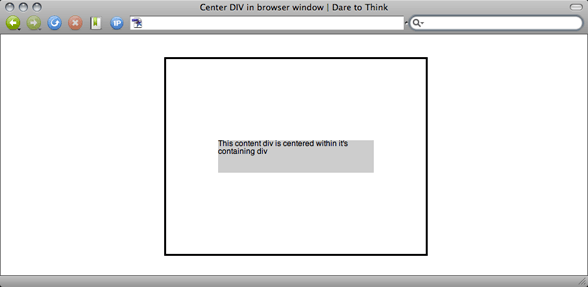
I always find it’s easier to download a page and play around with it in your own leisure so click here to download single html file containing HTML and CSS of the Centered DIV.
Here’s the code for those that don’t want to download:
CSS:
#container
{
position: absolute;
top: 50%;
left: 50%;
border: 3px solid black;
width: 400px;
height: 300px;
margin-left: -200px;
margin-top: -150px;
}

#content
{
font-size: 0.8em;
font-family: sans-serif;
background-color: #ccc;
position: relative;
left: 50%;
top: 50%;
width: 240px;
height: 50px;
margin-left: -120px;
margin-top: -25px;
}
HTML:
<div id="container">
<div id="content">
This content div is centered within it's containing div
</div>
</div>
2 replies on “Centre DIV Horizontally and Vertically using CSS”
Leave a Reply
-
HTML email signature in Apple Mail
Step by step guide on how to add an HTML signature to Apple Mail.
-
FREE EU Cookie Law Script
If you haven’t already implemented the changes then we’ve put together a little bit of code to help you.
-
Secure your WordPress Blog
A guide to securing your WordPress website.
-
Remove the shadow from Mac Screen Grabs
How to remove the shadow from Apple Screengrabs.
-
10 Useful Sites for Web Developers
Some useful websites for web developers.
-
3 FREE Apps to protect your PC
A few free apps to help you protect your PC.
-
Web Browsing Tips #1: Find in Page
Find copy in page in a web page.
-
Web Browsing Tips #2: Tabbed Windows
Using tabbed windows in your web browser.
-
Web Browsing Tips #3: Keyboard Shortcuts
Some web browsing keyboard shortcuts.
-
Redirect your site the Search Engine Friendly way
Using a 301 redirect is important when you change your website URL or web page URL.
-
Remove the WordPress Meta Tag from your Blog
Remove the WordPress meta tag from your WordPress site with this small function.
-
Stay secure, use more than one password
We need passwords for everything, but how can we stay secure and have multiple passwords without having to remember them all.
Thanks Jonno – I’ve changed the title accordingly.
Dude, your title is wrong (and redundant – when talking about web dev it’s assumed we’re talking about it being in a browser 🙂
Centering a div is just:
#container {
width:960px;
margin:0 auto;
}
What you are describing is both horizontal AND vertical centering.